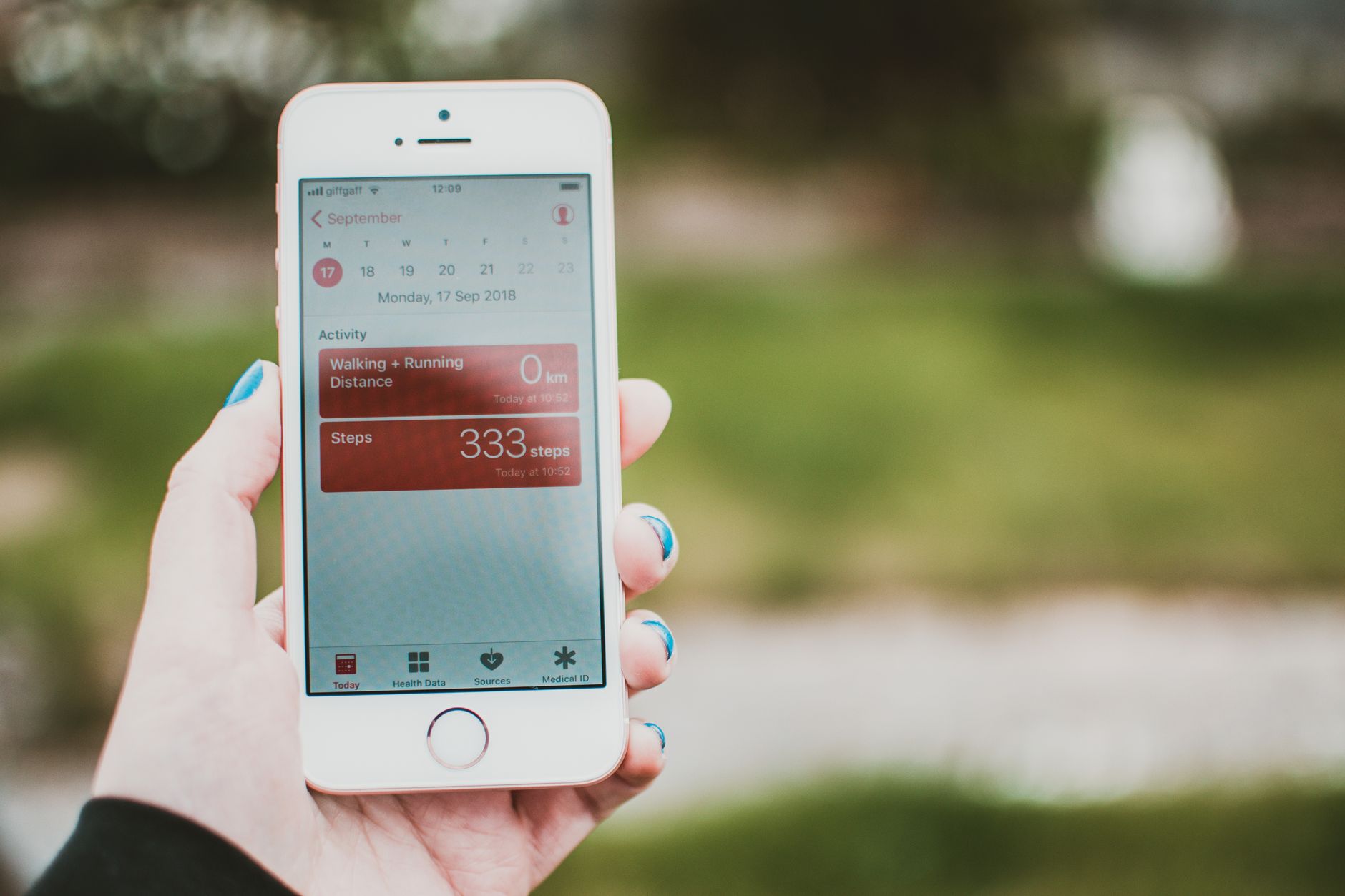
Staying on top of your health in 2026 means leveraging the power of wearable device syncing and fitness tracker app integration. Whether you use a smartwatch, fitness band, or a smart ring, syncing your wearables with health apps ensures your health data syncing is accurate and actionable. This complete guide will walk you through how to connect your devices, boost data accuracy, and get the most out of your health management routines.
Why Sync Wearables With Health Apps?
Wearable devices collect a wealth of health information: steps, sleep patterns, heart rate, calories burned, and more. By syncing wearables with health apps:
- Centralize your data: All metrics are available in one dashboard.
- Track trends: Spot patterns and improvements over time.
- Enable smarter decisions: Use real-time data to adjust workouts, sleep, and nutrition.
- Share with professionals: Easily send data to doctors or trainers for tailored advice.
For example, a 2026 survey found that users who regularly sync their fitness trackers with health apps improved their physical activity levels by 20% compared to those who manually track data.
Popular Wearables and Health Apps in 2026
The landscape of wearable device syncing and health app integration keeps evolving. Here are the most popular options:
| Wearable Device | Compatible Health Apps | Main Features |
|---|---|---|
| Smartwatches (Apple Watch, Galaxy Watch) | Apple Health, Samsung Health, Google Fit | Steps, sleep, heart rate, ECG |
| Fitness Bands (Fitbit Charge 6, Garmin Vivosmart) | Fitbit App, Garmin Connect, Strava | Activity tracking, sleep, stress |
| Smart Rings (Oura Ring, Ultrahuman Ring) | Oura App, Ultrahuman App | Sleep, recovery, temperature |
Most devices offer Bluetooth and cloud syncing, making integration seamless and fast.
Step-by-Step Guide: Syncing Your Wearables With Health Apps
Getting your health data syncing right is simple if you follow these steps:
1. Set Up Your Wearable Device
- Charge your device: Ensure it’s fully powered.
- Download the companion app: Find it in the App Store or Google Play.
- Create an account: Enter basic personal information for accurate tracking.
2. Connect Your Wearable to Your Smartphone
- Enable Bluetooth: Most devices sync via Bluetooth; turn it on in your phone settings.
- Open the companion app: Follow prompts to pair your device.
- Allow permissions: Grant access to location, physical activity, and notifications.
3. Sync With Your Health App
- Link accounts: In your companion app, find “Connect to Health App” or similar options.
- Choose your health app: Select Apple Health, Google Fit, Samsung Health, etc.
- Authorize sharing: Approve data sharing between your wearable app and health app.
4. Customize Data Syncing Preferences
- Select data types: Decide which metrics (steps, sleep, heart rate) to sync.
- Set sync frequency: Choose between real-time, hourly, or daily syncing.
- Enable auto-sync: Turn on automatic syncing for hands-free updates.
5. Troubleshoot Common Sync Issues
- Check connectivity: If syncing fails, ensure Bluetooth is active and devices are nearby.
- Update apps: Keep both wearable and health apps updated.
- Restart devices: Reboot your wearable and smartphone if problems persist.
Maximizing the Benefits of Fitness Tracker App Integration
To make the most of fitness tracker app integration, consider these expert tips:
- Sync regularly: Daily syncing keeps your health data up to date.
- Review weekly summaries: Most apps offer charts showing progress on steps, sleep, and more.
- Set smart goals: Use app features to set personalized health targets.
- Share your progress: Many apps allow sharing with friends or health professionals.
- Integrate other apps: Connect nutrition, medication, and mindfulness apps for a holistic view.
Example: Sleep Tracking
Oura Ring users who synced with Apple Health in 2026 reported a 15% improvement in sleep quality scores after adjusting habits based on sleep trend insights.
Data Security and Privacy Considerations
Syncing wearables with health apps means sharing sensitive information. Here’s how to stay secure:
- Read privacy policies: Understand how your data is stored and used.
- Use strong passwords: Secure your wearable and health app accounts.
- Enable two-factor authentication: Adds an extra layer of security.
- Update software: Regular updates patch vulnerabilities.
A 2026 study showed that 87% of users felt confident in data privacy after enabling two-factor authentication on their health app accounts.
Frequently Asked Questions
Can I sync multiple wearables to one health app?
Yes, most health apps like Apple Health or Google Fit allow syncing from multiple devices. This ensures comprehensive health tracking if you use, for example, both a smartwatch and a smart ring.
What happens if my device loses connection?
Data will typically sync once the connection is restored, although some devices may require manual syncing. Check your companion app for troubleshooting steps.
Are third-party apps safe for syncing?
Choose apps with robust privacy policies and high user ratings. The most reputable apps in 2026 include Apple Health, Google Fit, Samsung Health, and Fitbit.
Key Takeaways
- Sync wearables with health apps to centralize, track, and share your health data.
- Follow step-by-step setup: charge your device, connect via Bluetooth, link to your health app, and set sync preferences.
- Regular fitness tracker app integration leads to better health outcomes and smarter management.
- Ensure data privacy by enabling security features and keeping apps updated.
- Most devices and apps in 2026 make wearable device syncing seamless and reliable.
By mastering health data syncing, you ensure your fitness tracker and wearable devices work together for a healthier, more informed lifestyle in 2026.